Getting started
Reporting
Configuration
Updates
Teams
Teams are used to manage access by grouping members and assigning scopes.
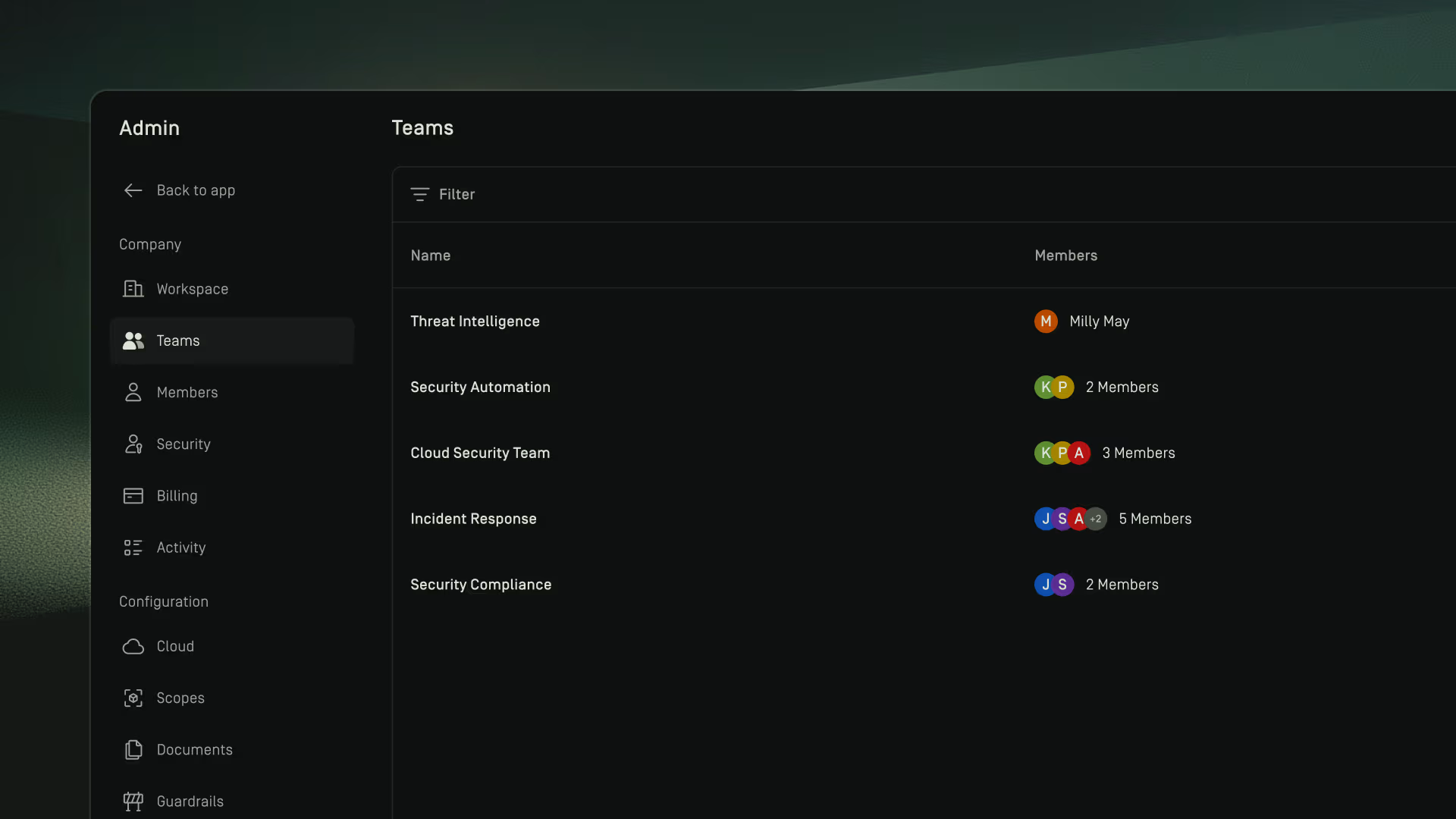
Overview
Create a team
- Open Admin→ Teams
- Click + Create team
- Enter a team name
- Optionally enter a description
- Click Next
- Add members and click Next or click Skip for now if you wish to add members later
- Assign one or more scopes and click Create or click Skip and create if you wish to add scopes later

Managing teams
Rename a team
- Go to Admin→ Teams
- Hover over a team's row
- Click on the dotted menu
- Select Rename team
- Rename the team
- Click Save changes
Edit team members
- Go to Admin→ Teams
- Hover over a team's row
- Click on the dotted menu
- Select Edit members
- Add or remove members
- Click Save changes
Edit team scopes
- Go to Admin→ Teams
- Hover over a team's row
- Click on the dotted menu
- Select Edit scope
- Add or remove members
- Click Save changes
Delete a team
- Go to Admin→ Teams
- Hover over a team's row
- Click on the dotted menu
- Select Delete
- Enter the team's name in the confirmation modal
- Click Delete