Getting started
Reporting
Configuration
Updates
Documents
Upload files to enrich architecture insight generation.
Overview
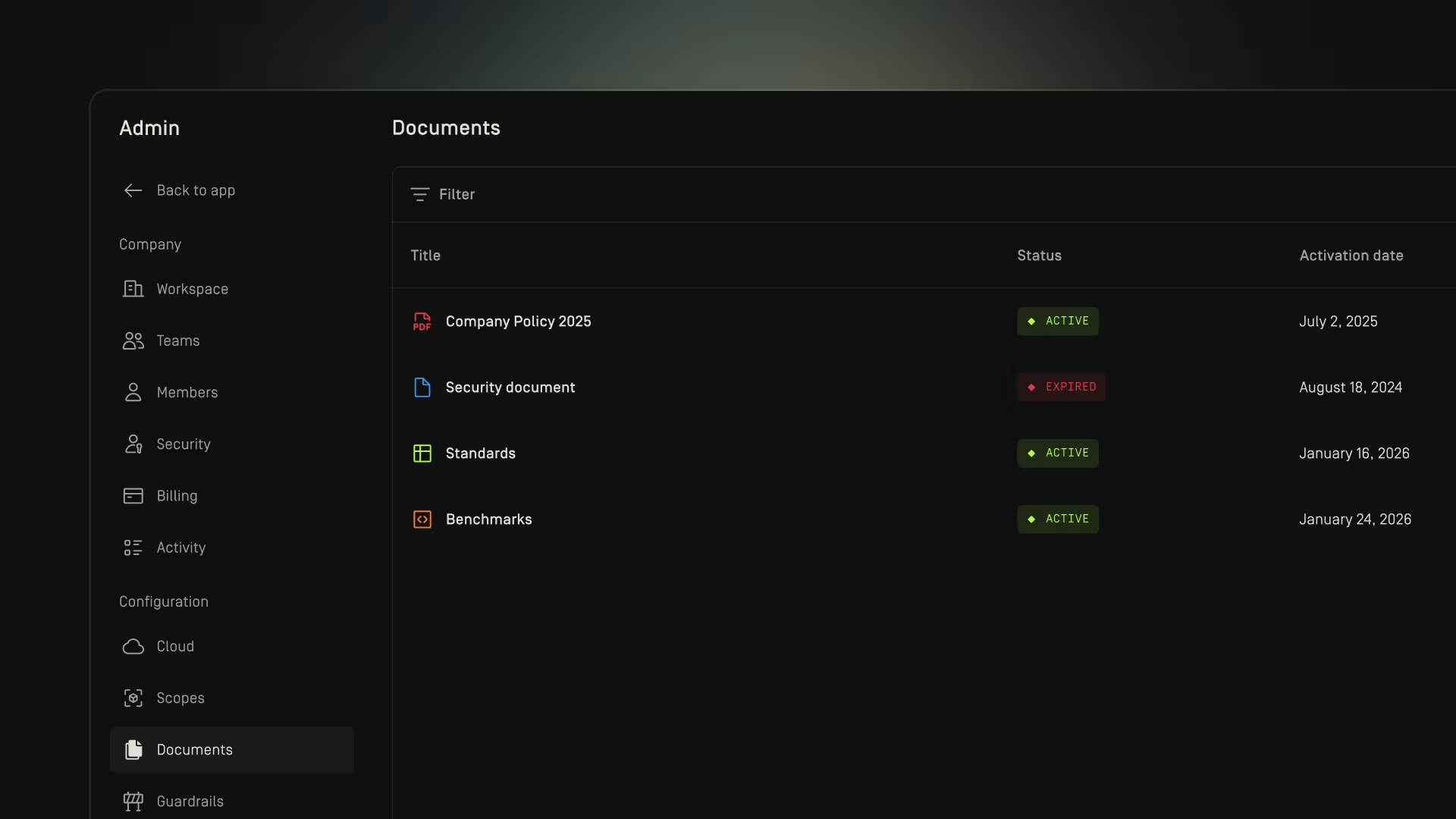
The Documents page allows you to upload organization specific materials that Dawnguard uses to enrich and contextualize insights.
These documents help Dawnguard understand your internal architecture principles, policies, standards, and design constraints so the insights you receive are more accurate, contextual, and aligned with how your organization builds systems.
Documents are not general file storage, they directly influence how Dawnguard interprets your cloud environments and evaluates risks.
Upload Document
- In the Dawnguard app, go to Admin → Cloud.
- Click Upload Document.
- Select the document you want to upload (PDF, .docx and .xlsx formats are supported).
- In the modal that appears, enter a Document title.
- Set the document Activation period (expired documents will no longer affect insights).
- Click Save to complete the upload.

Edit Document
- In the Dawnguard app, go to Admin → Documents.
- In the table, hover over the document you want to edit and click the menu button.
- From the dropdown menu, select Edit.
- Update the fields you want to modify.
- When finished, click Save changes to apply your updates.

Delete Document
- In the Dawnguard app, go to Admin→ Cloud.
- In the table, hover over the document you want to delete and click the menu button.
- From the dropdown menu, select Delete.
- In the confirmation dialog, click Delete to confirm.
