Microsoft Entra ID (One-Click)
Enables automatic setup of Secure Single Sign-On (SSO) between your organization and Dawnguard.

SSO Setup Email
Dawnguard will send your technical PoC a one-click SSO setup e-mail. Once you receive this e-mail, you have 48 hours to click the link in the e-mail to connect your Entra-ID to Dawnguard. If your e-mail has expired, please request a new e-mail from customer support.
.jpg)
Selecting your SSO domain(s)
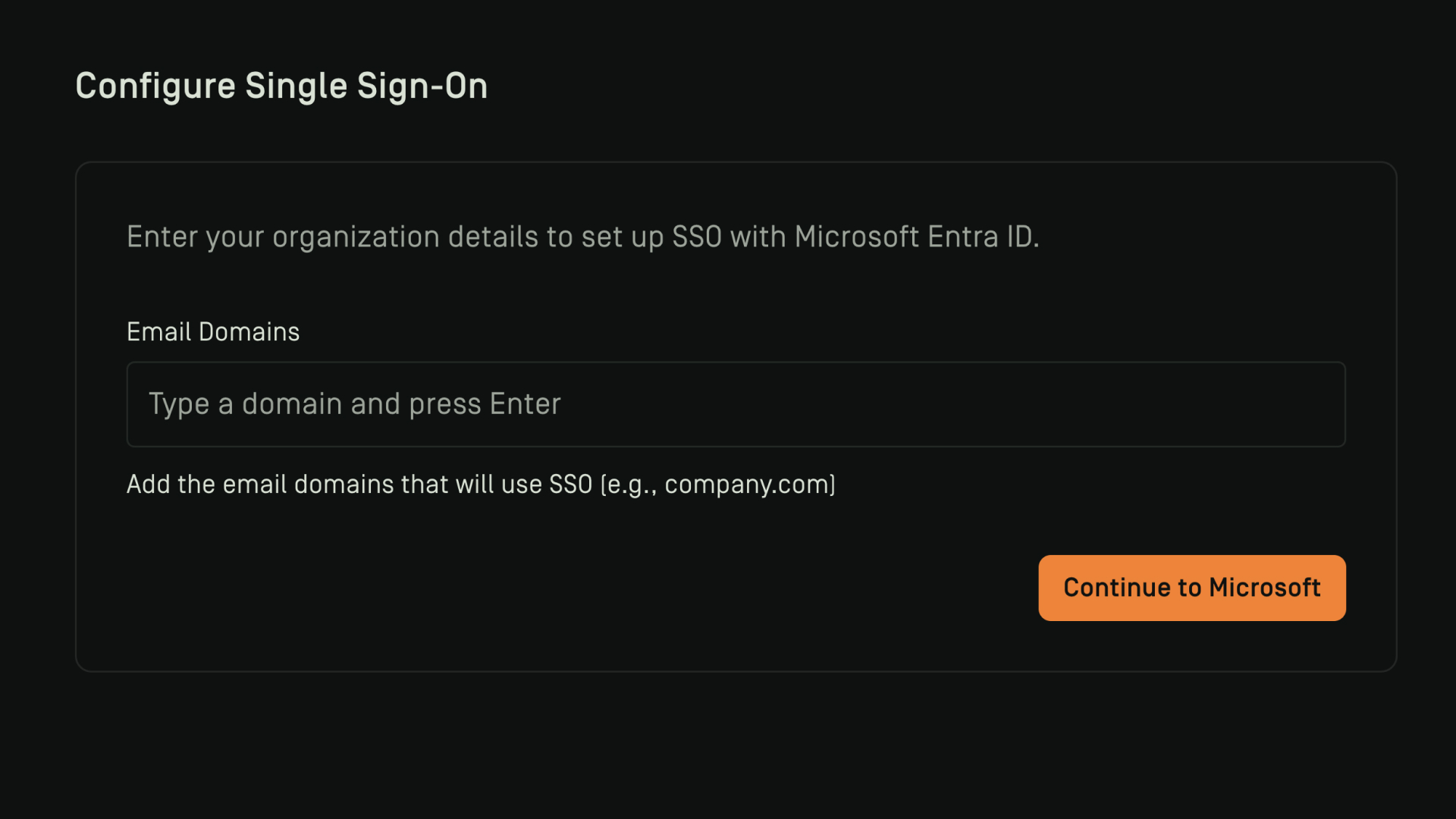
After clicking the link in the SSO setup e-mail, you will be taken to the Dawnguard application. The system will then ask you to;
1. Provide the email domains that your users sign in with.
For example, if your user's login with email@company.com OR email.company.nl you should register both company.com and company.nl. Registering these domains allows our system to determine which customer is signing in, without requiring customer-specific domain names.
2. Click continue to Microsoft
Granting permissions
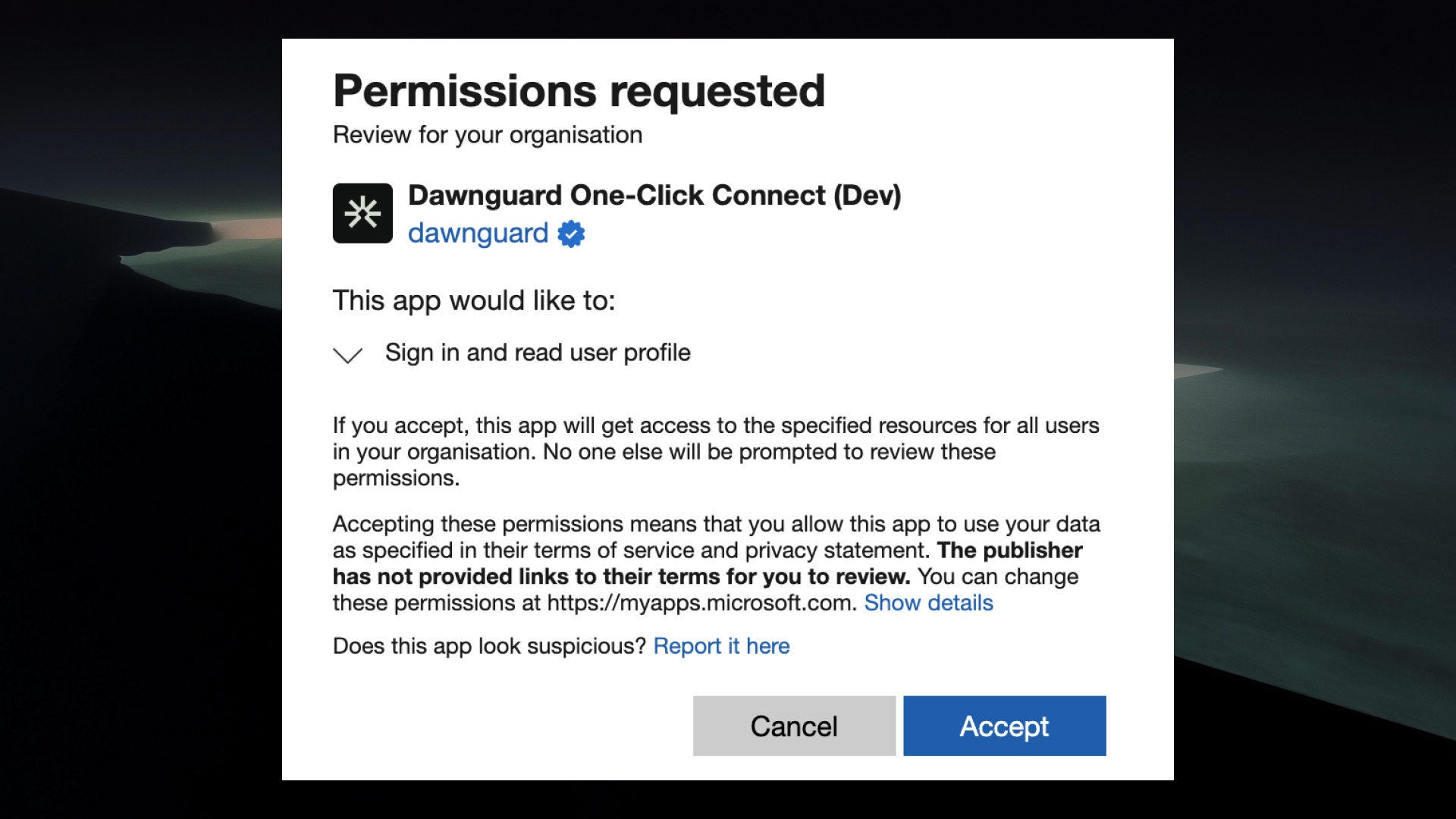
Once you have logged-in, Entra-ID will prompt you to provide consent to the permissions needed by the Dawnguard App. You can click "Accept" to continue.
SSO Setup Complete
You are now redirected back to the Dawnguard app. Your SSO has succesfully been connected.
To login, you should navigate to the Azure portal and assign users to the newly created "Dawnguard One-Click Connect" Enterprise app to provide access to the system.
.jpg)