Tools
Learn how each tool helps you work effectively on the architecture canvas.

Pointer Tool
The Pointer tool is the default selection tool used to interact with objects on the canvas. It allows you to select objects, open context menus, and navigate.
You can select the Pointer tool by clicking the Pointer Tool button in the toolbar or by pressing V on your keyboard.

Hand Tool
The Hand tool is used to pan and reposition the canvas by clicking and dragging. It allows you to quickly move around the workspace to view different areas of your design.
You can select the Hand tool by clicking the Hand Tool button in the toolbar or by pressing H on your keyboard. The Hand tool can also be temporarily activated in any mode by holding the Spacebar and dragging the canvas.

Zoom Controls
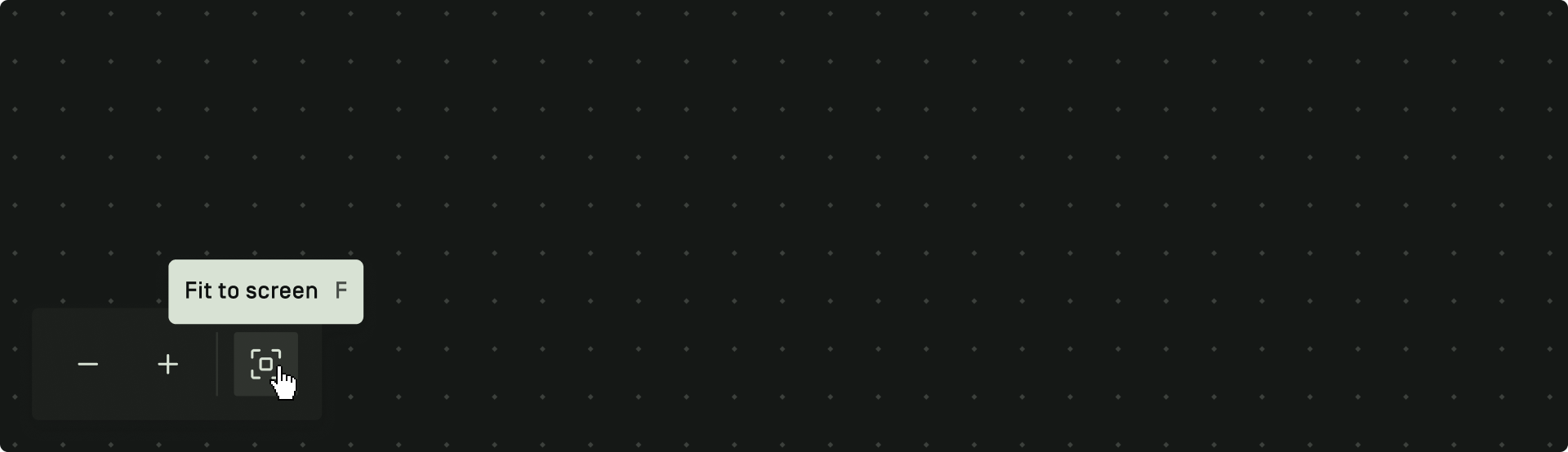
You can zoom in by clicking the + button on the zoom bar, or by pressing ⌘ + or Ctrl +.
You can zoom out by clicking the – button on the zoom bar, or by pressing ⌘ – or Ctrl –.
To fit the architecture to the canvas, click the Fit to Screen button or press F on your keyboard.