Insights
Insights highlight optimization opportunities across your cloud environment.
Overview
The Insights page provides a centralized view of all detected issues across your environment.
Insights can also be explored in the canvas, where they are visualized per architecture for better contextual understanding.
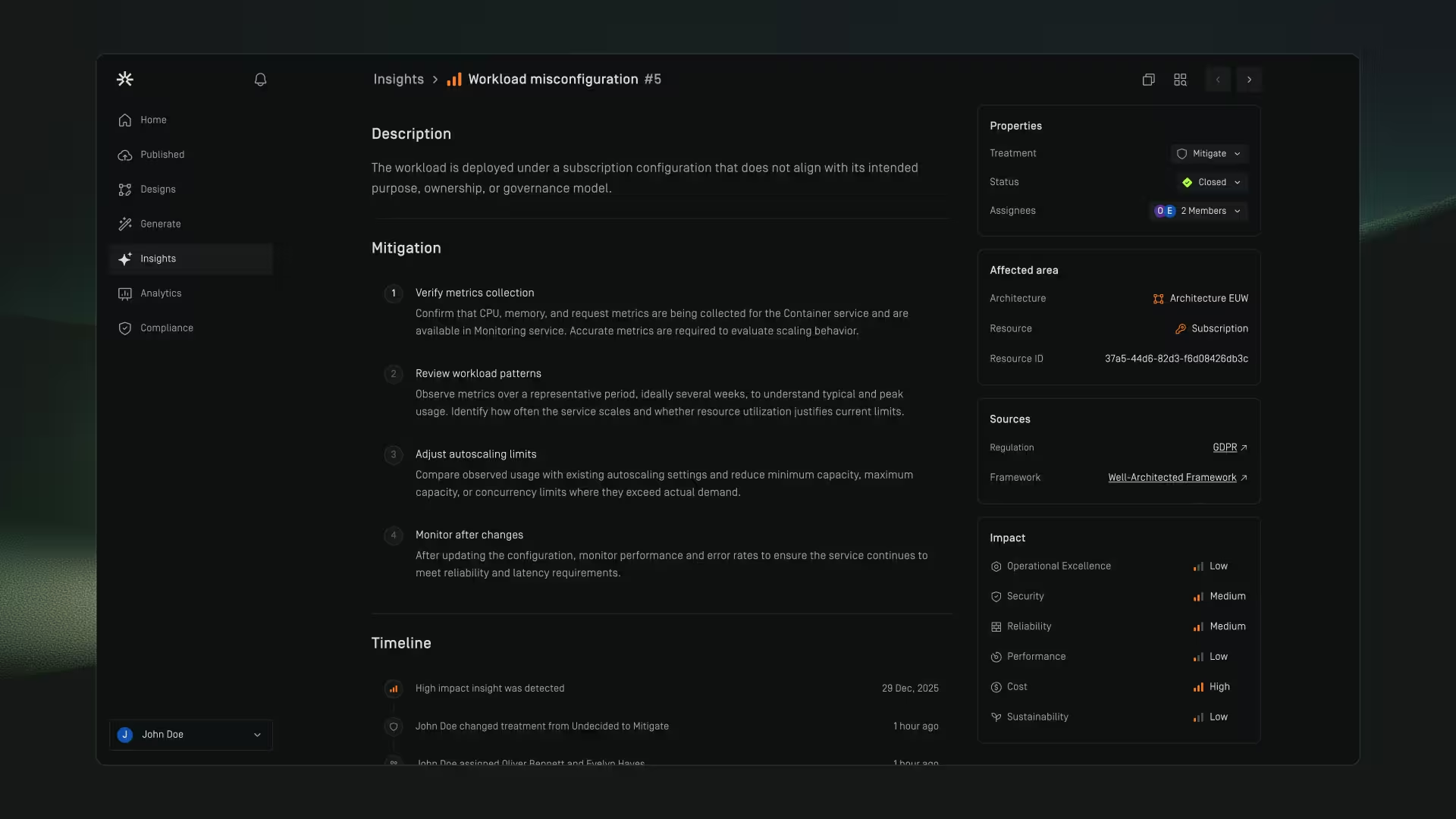
Insight details include context, impact, and recommended mitigation steps, helping teams prioritize and take action efficiently.
Insights table

Insights status tabs
Insights are grouped by workflow status for quick navigation:
Filtering table insights
- On the Insights page, click Filter in the table
- Apply filters to refine which insights are shown on the canvas
- Active filters appear as filter chips
- Click the close button on a chip to remove an applied filter
- Click Clear to remove all applied filters
Export Insights (CSV)
On the Insights page, click Export CSV to export insights as a CSV file to share findings or use them in external workflows. The export includes key insight metadata and attributes.
Insights on canvas
Search canvas insights
Search for specific insights by name. Matching insights will be highlighted on the canvas, with typed terms emphasized for quick identification.
Filter canvas insights
- On the canvas, click Insights in the toolbar or press I on your keyboard
- Click the filter button next to the search field
- Apply filters to refine which insights are shown on the canvas
- Active filters appear as filter chips
- Remove a filter by clicking the close button on a chip
Insight properties
Treatment
A treatment strategy can be chosen to determine how an insight is handled by your team:
Status
Status reflects the current progress of an insight and can be updated:
Assignees
Assign one or more team members to an insight.
Assignees are responsible for addressing the issue and will be notified of updates.
Affected area
Indicates which resource or part of the architecture is impacted by the insight.
Impact
Impact scoring
Each insight is assigned an impact level, indicating its potential risk or implication:
Pillars
Architecture Insights help cloud architects design secure, high-performing, resilient, and efficient infrastructures by applying the pillars of the AWS and Azure Well-Architected Frameworks.
The pillars represent the core principles that guide the evaluation and improvement of published architectures or reviewed architecture designs. They form the foundation of how Dawnguard analyzes and generates insights, enabling teams to collaborate around clear architectural priorities and maintain consistency across designs.
Each pillar focuses on a key aspect of system quality:
Mitigation steps
Mitigation steps guide the user in resolving the insight.
Steps can be checked off as they are completed.
When the final step is checked, the insight is closed and a closing reason must be provided.
Timeline
Timeline events
The timeline displays a history of all events related to the insight, including:
- Insights found with a certain impact score
- Treatment updates
- Status updates
- Assignee updates
Commenting
On the bottom of the timeline, team members can add comments to collaborate, share context, and track progress directly on the insight.
Insight actions
Copy URL
Click Copy insight URL in the Insight detail page header to copy a direct link for easy sharing.
Show in architecture
Click Show in architecture in the Insight detail page header to view the insight on the architecture canvas.