Members
Learn more about member roles, admin access, and how to manage members.
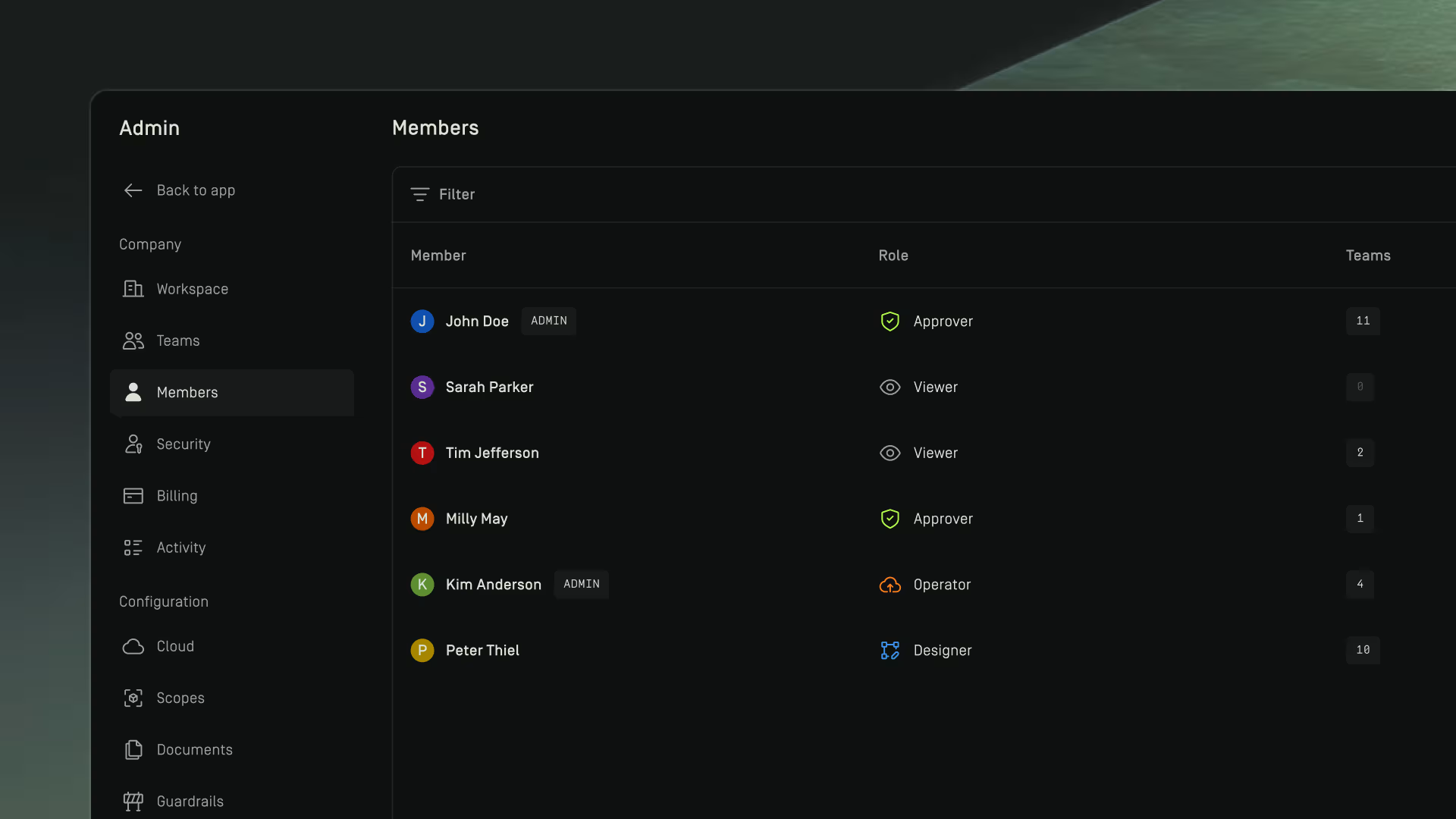
Overview
The Members page lets you view and manage everyone who has access to your Dawnguard workspace.
From here, you can edit a member's role, grant or revoke admin access, and remove members when Just-in-Time provisioning is configured.
SCIM provisioning can also be enabled to automate user lifecycle management directly through your identity provider.
Managing members

Just-in-time provisioning
Just-in-Time (JIT) provisioning automatically creates a user account the first time someone logs in via your identity provider such as Entra-ID or Cognito. Instead of pre-inviting users, access is granted dynamically when they authenticate successfully.
This means users only get access when they actually need it, reducing administrative overhead and ensuring that only verified identities can enter your environment. Roles and permissions can be assigned based on identity provider attributes, allowing for controlled and streamlined onboarding.
SCIM provisioning
SCIM provisioning enables automated user management through an identity provider. It allows you to automatically create, update, and remove users based on changes in your identity system, ensuring that access remains up to date at all times.
Learn how to set up SCIM provisioning.
Remove a member
- Go to Admin-> Members
- Hover over a member's row
- Click on the dotted menu
- Select Remove
- Enter the member’s name in the confirmation modal
- Click Remove
Roles and permissions
Dawnguard provides a set of standard role types to help you manage access and permissions across your workspace. Each role defines the level of access a team member has within the application.
Additional admin access can be granted by an existing admin. The Admin role is a system role that grants access to user and workspace management capabilities. It does not automatically include permissions to create or modify content, which are defined separately by standard roles. A user can have both a standard role and the Admin role at the same time, combining operational access with administrative privileges.
Edit member role
- Go to Admin-> Members
- Hover over a member's row
- Click on the dotted menu
- Select Edit role
- Select a new role
- Click Confirm
Edit admin access
- Go to Admin-> Members
- Hover over a member's row
- Click on the dotted menu
- Select Grant admin access or Revoke admin access
- Select a role and click Confirm