Getting started
Reporting
Configuration
Updates
Scopes
Scopes define what Dawnguard evaluates, and which rules apply to specific environments.
Overview
The Scopes page lets you create and manage scopes across your Dawnguard workspace. From here, you can create scopes, configure their cloud connections, documents, and guardrails, and delete scopes when no longer needed.
Learn more about assigning scopes at Teams.
Create a scope
- Open Admin→ Scopes
- Click + Create scope
- Enter a scope name
- Optionally enter a description
- Click Next
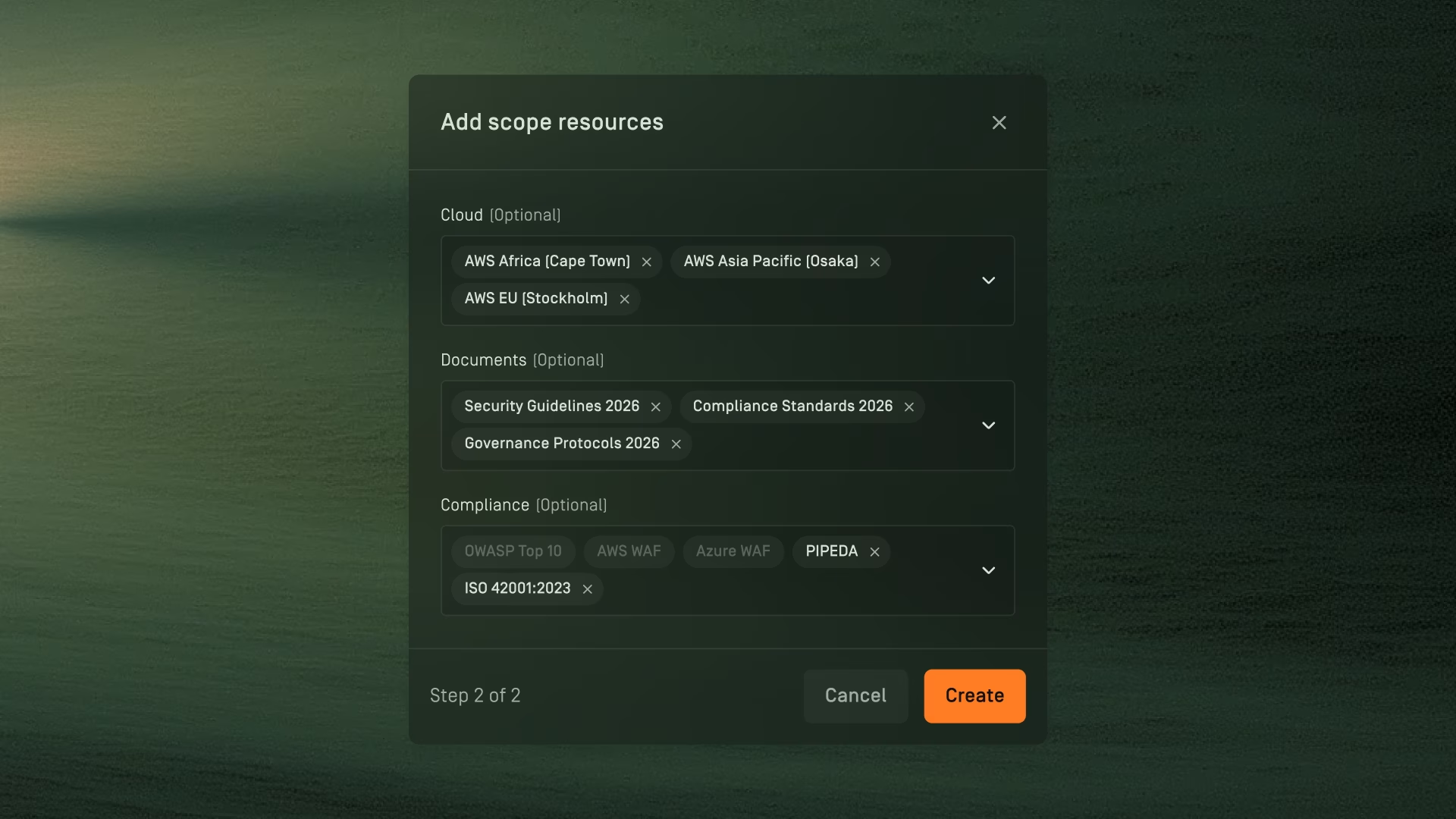
- Select cloud connections, documents, and guardrails and click Create or click Skip for now if you wish to finish the scope configuration later

Managing scopes
Rename a scope
- Go to Admin→ Scopes
- Hover over a scope's row
- Click on the dotted menu
- Select Rename scope
- Rename the scope
- Click Save changes
Edit a scope
- Open Admin→ Scopes
- Hover over a scope's row
- Click on the dotted menu
- Select Edit scope
- Edit cloud connections, documents, and guardrails.
- Click Save changes
Delete a scope
- Open Admin→ Scopes
- Use the three dots in the scopes table when hovering over a scope
- Click Delete
- Type in the scope name
- Press Delete