Filters
Quickly refine and focus on the data that matters most across Dawnguard
Overview
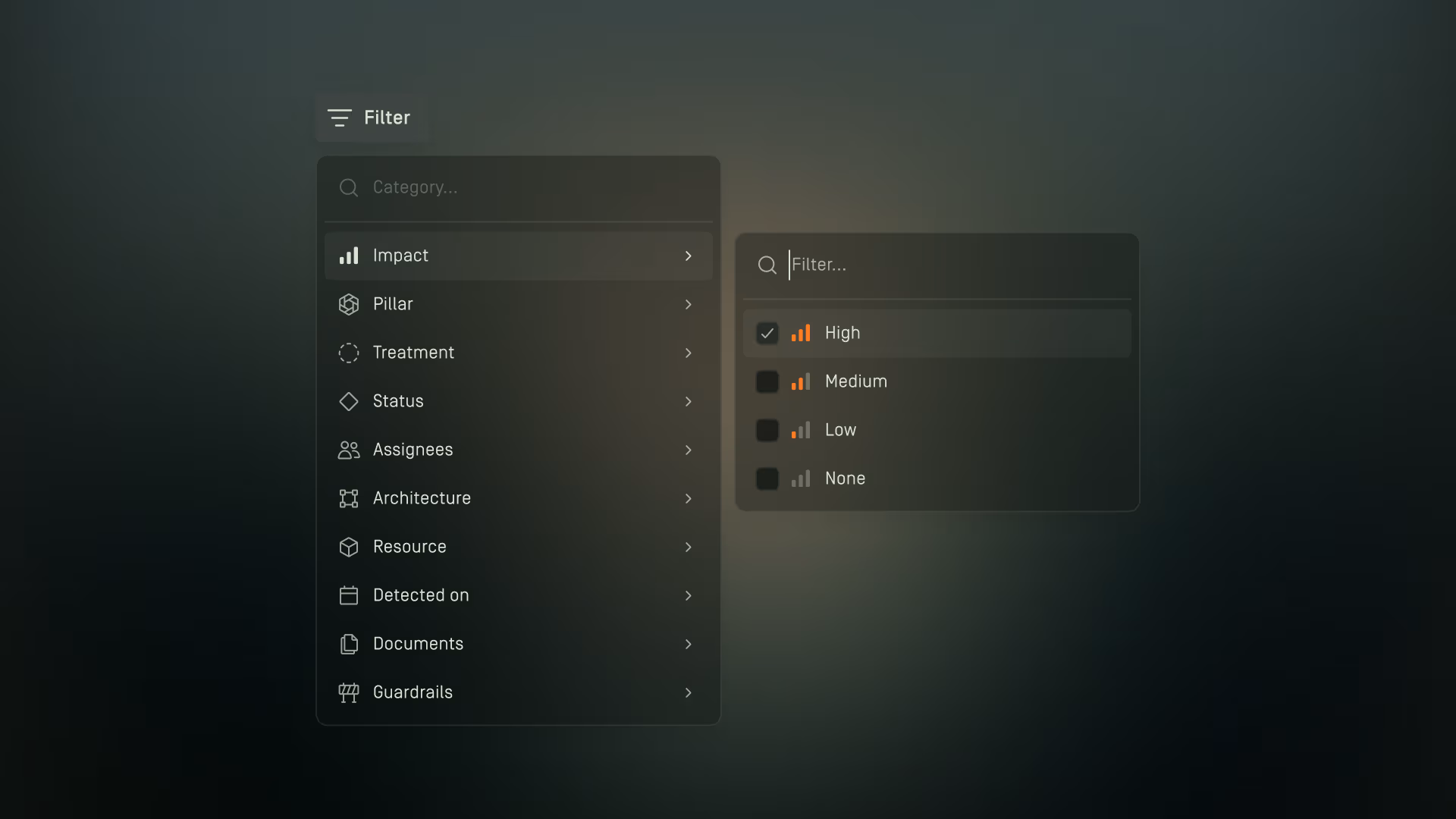
Filters allow you to narrow results and focus on specific data across Dawnguard.
Whether you're reviewing insights, managing configurations, or searching for information, filters help you reduce noise and quickly find the items most relevant to your task.
For example, you might use filters to:
- View high-impact insights that require immediate attention.
- Find insights related to security.
- Review findings associated with a particular guardrail or document.
- Combine multiple criteria to investigate specific areas of your environment.
On pages where filtering is supported, click Filter to access the available filtering options.
The available filter options may vary depending on the page you are viewing.
Applying a Filter
To begin filtering data:
- Click Filter.
- Select a filter category.
- Select one or more filter values.
The displayed results update automatically based on the selected criteria.
Applied filters appear above the results so you can easily see which filters are currently active.

Filter Behaviors
Different filter categories may support different selection methods.
Single-Select Filters
Some filters allow only one value to be selected at a time.
For example, a Cloud Provider filter may allow you to select either AWS or Azure, but not both simultaneously.
Multi-Select Filters
Some filters allow multiple values within the same filter category.
When multiple values are selected, Dawnguard displays results matching any of the selected values.
For example:
- High Impact and Medium Impact displays results that are either High Impact or Medium Impact.
- Security and Reliability displays results related to either Security or Reliability.
Adding Additional Filters
After applying your first filter, you can add more filter conditions to further refine the results.
To add another filter:
- Click Add Filter.
- Select another filter category.
- Choose the value you want to apply.
You can continue adding filters to create more focused result sets.
For example, on the Insights page, you might combine:
- High Impact and Cost to identify high-priority findings with cost implications.
- A specific Document and Guardrail to review findings associated with a particular requirement.
When multiple filter categories are applied, they work together to progressively narrow the displayed results.
For example:
- High Impact + Cost displays only results that match both criteria.
- A specific Document + a specific Guardrail displays only findings associated with both the selected document and guardrail.
Active Filters
Applied filters are displayed above the results as filter chips.
Each filter chip shows:
- The filter category
- The selected value
To remove an individual filter, click the X displayed on the filter chip.
The results update automatically when a filter is removed.
Clearing Filters
Use Clear to remove all active filters at once.
Clearing filters restores the full set of available results for the current page.
This is useful when you want to start a new search or return to an unfiltered view of your data.
Searching Within Filters
Some filters include a search field to help you quickly locate specific values.
This is particularly useful when a filter contains a large number of available options.
For example, rather than scrolling through a long list of documents or guardrails, you can search for the specific item you're looking for.